Initializing OCR engine…
Loading language models

Image to Text Instantly.

Advanced pre-processing pipeline for high-accuracy text extraction. No data ever leaves your browser.
Raw Image Data Sample image
Extracted Text Hello, this is the extracted content. [Accuracy: 99.4%]
Source No image selected
Drop image here
PNG, JPG, WEBP, BMP · Max 15 MB
or click to browse
OCR Result
📄 Extracted text
Output
✨ Upload an image and click ✨ Extract text.
Recognised content will appear here.

Use cases

Extract text from any image

From scanned documents to screenshots, the OCR engine handles them all — right in your browser.

Scanned docs

Physical documents

Extract text from scanned letters, invoices, or printed forms without retyping a single word.

Screenshots

Screen captures

Pull text from error messages, UI screenshots, or chat exports into a copyable format.

Receipts & bills

Financial records

Digitise receipts, utility bills, or bank statements for easy record keeping or expense tracking.

ID & cards

Business cards

Read names, emails, and phone numbers off business cards or ID documents instantly.

Books & notes

Printed text

Convert printed book pages or typed notes into searchable, editable plain text.

Code snippets

Images with code

Recover code shared as a screenshot so you can copy, edit, or run it without manual retyping.

FAQ

Frequently asked questions

Everything you need to know about image-to-text extraction.

Is my image kept private?
Yes, completely. All OCR processing runs locally in your browser using Tesseract.js. Your images are never uploaded to any server and never leave your device.
What image formats are supported?
PNG, JPG/JPEG, WEBP, and BMP files up to 15 MB. For best results, use a high-resolution image with clear, high-contrast text.
What do the pre-processing settings do?
Scale, contrast, brightness, sharpening, thresholding, and denoising are applied before Tesseract scans your image. Tuning these can dramatically improve accuracy on low-quality scans.
What is the confidence score?
The confidence percentage reported by Tesseract indicates how certain the engine is about the recognised characters. Scores above 70% generally yield clean output; lower scores may need pre-processing adjustments.
Why does Otsu vs adaptive threshold matter?
Otsu finds a single global threshold — best for evenly lit documents. Adaptive computes a local threshold per region — better for images with uneven lighting, shadows, or gradients such as photographed pages.
Can I compare the extracted text with another version?
Yes — copy the extracted text and paste it into our Text Compare tool to diff it against any other version. Useful for verifying OCR accuracy against a known source.

Visual guide

See image-to-text in action

Upload an image, apply preprocessing, and let OCR turn it into editable text — all in your browser.
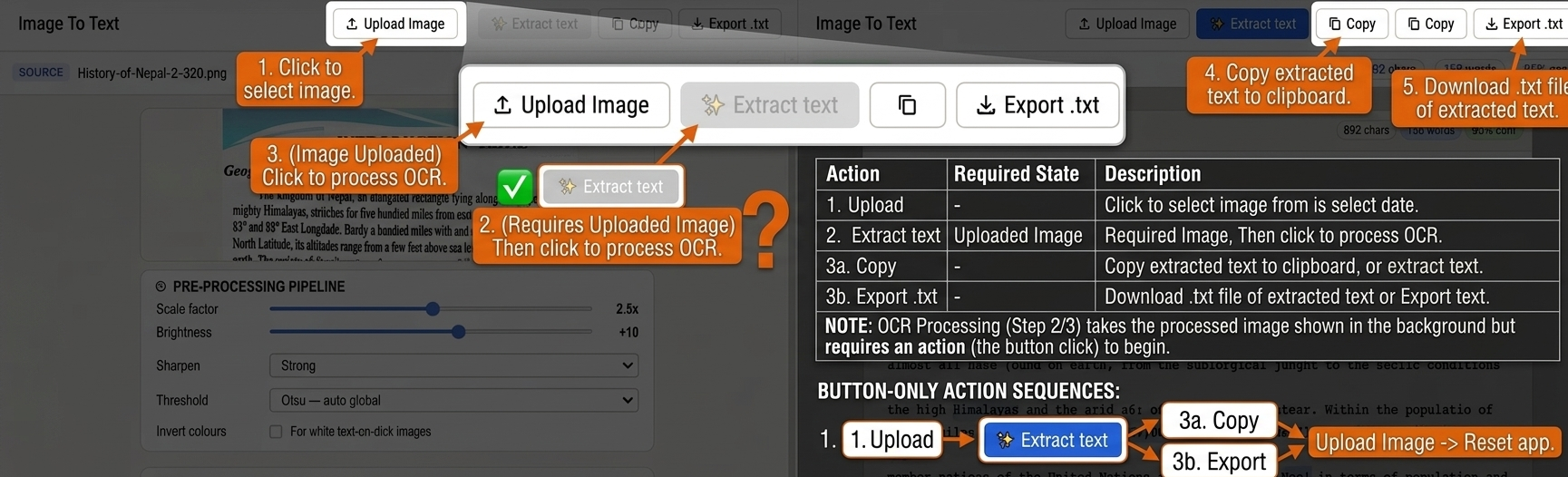
Image to text visual guide showing OCR workflow

More free tools

You might also need